
Getting Started with AI Personal Assistants: Simple Setup Guide
"Alexa, turn on the lights." "Hey Google, what's the weather today?" "Hey Siri, set a timer for 15 minutes."
If you've heard friends or family using voice commands like these and thought "I'd love to try that, but I wouldn't know where to start," this guide is for you.
Smart home voice assistants aren't complicated tech reserved for gadget enthusiasts anymore. They're practical tools that make everyday life easier - and choosing the right one is actually the hardest part. Once you've got your device, setup takes about 15 minutes, even if you've never done anything like this before.
In this guide, I'll help you choose the perfect assistant for your needs, show you what to expect, and give you everything you need to go from "complete beginner" to "confident user" in one afternoon.
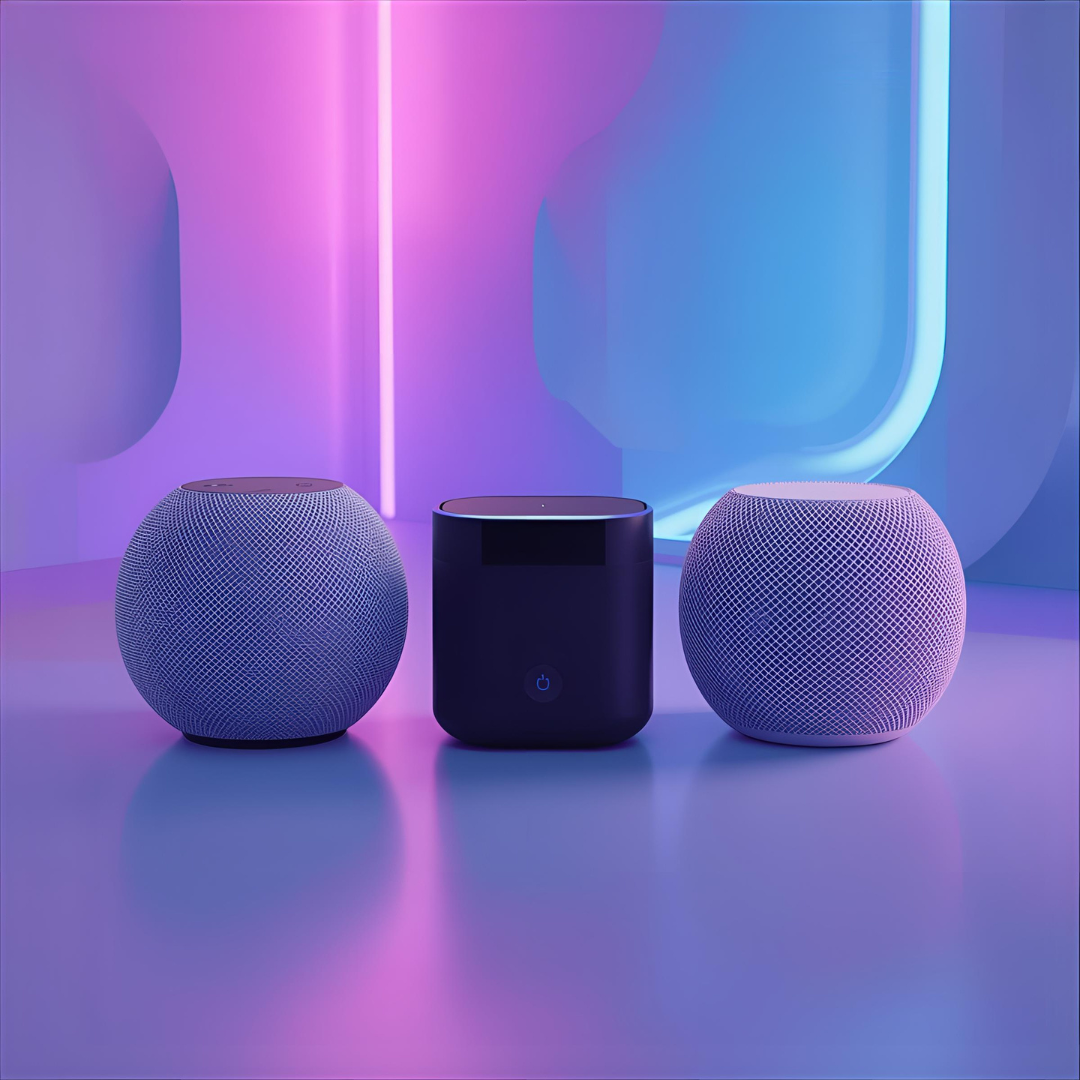
Image of three smart assistants sitting together
Which AI Assistant Should You Choose?
This is the most important decision, because each assistant has different strengths. Let's break down the three main options available in the UK.
Amazon Alexa (Echo Devices)

Amazon Echo Dot Product Image
Best for: Most people, especially beginners and those who want the widest range of smart home compatibility.
Devices to consider:
Echo Dot (5th Gen) - £54.99: Perfect starter device, compact, surprisingly good sound
Echo Dot with Clock - £69.99: Same as above but displays time and temperature
Echo Show 5 - £89.99: Adds a screen for video calls and visual information
Why choose Alexa:
Works with more smart home devices than any other assistant (lights, plugs, thermostats, cameras)
Massive library of "skills" (over 100,000 add-on features)
Excellent voice recognition, even in noisy rooms
Great for music - works with Spotify, Amazon Music, Apple Music, BBC Sounds
Strong UK integration (local radio, NHS health info, National Rail updates)
Most affordable entry point
Popular UK uses:
Playing BBC radio stations and podcasts
Setting multiple timers while cooking
Controlling smart home devices
Shopping list management
News briefings from UK sources
Who it's NOT ideal for: Apple users who want everything in one ecosystem
Google Nest (Google Assistant)
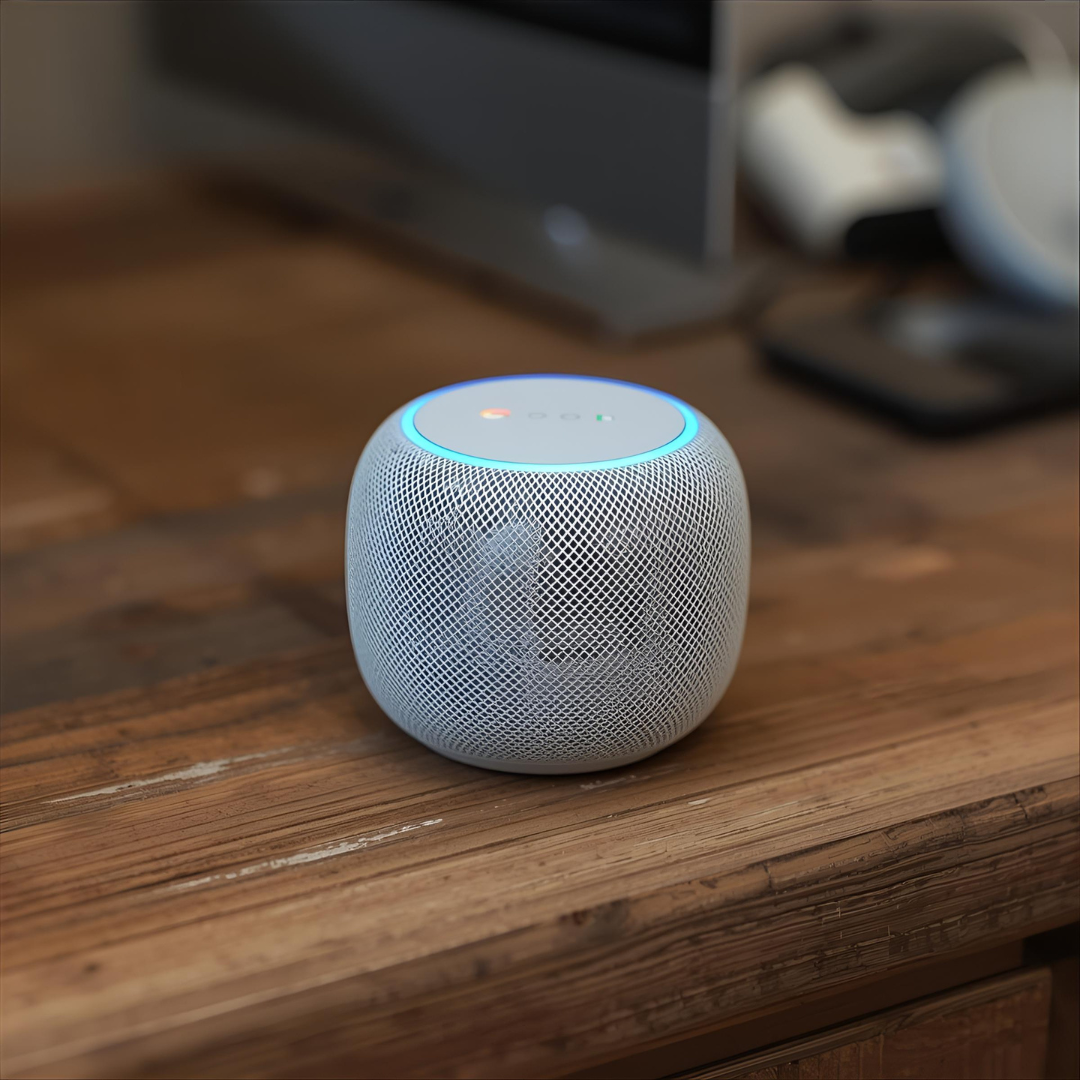
Google Nest product image.
Best for: People who use Gmail, Google Calendar, YouTube, and other Google services heavily.
Devices to consider:
Nest Mini - £49: Compact, affordable, great sound for its size
Nest Audio - £89.99: Better sound quality for music lovers
Nest Hub (2nd Gen) - £89.99: Adds a 7-inch screen with sleep tracking
Why choose Google:
Seamless integration with Google services (Calendar, Gmail, Photos, YouTube)
Best at answering factual questions (it's Google, after all)
Excellent for local searches ("Where's the nearest pharmacy?")
Strong smart home support (though slightly less than Alexa)
Great family features (multiple user recognition)
Superior at understanding natural language and context
Popular UK uses:
Calendar and reminder management for busy families
Local business information and directions
YouTube playback on Nest Hub devices
Broadcast messages to all devices in the home
Recipe guidance with step-by-step instructions
Who it's NOT ideal for: People concerned about Google's data collection, or those not invested in Google services
Apple HomePod Mini (Siri)
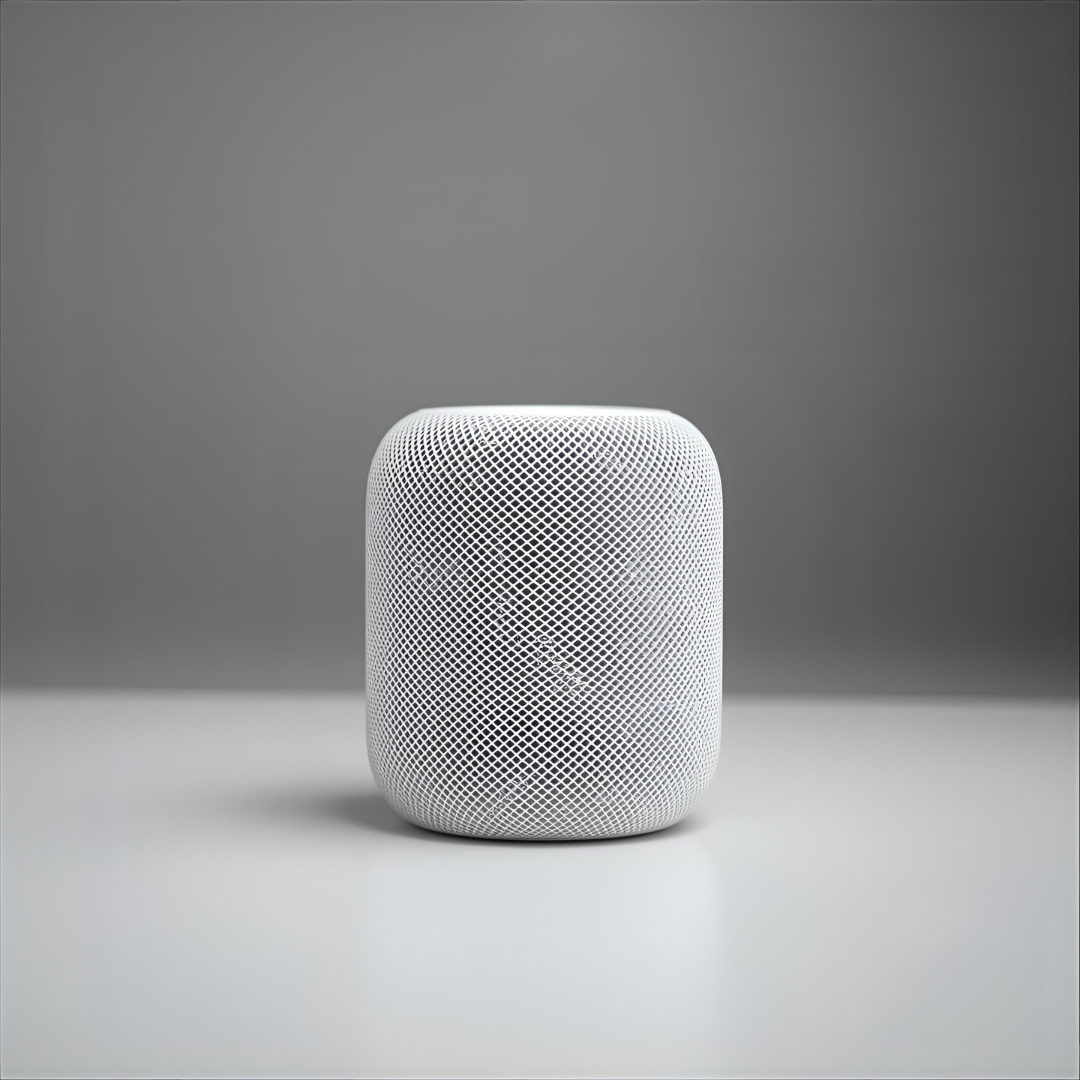
Apple Homepod Mini product image.
Best for: Apple users who want everything to work seamlessly with their iPhone, iPad, and Mac.
Devices to consider:
HomePod Mini - £99: Only one size available, premium design and sound
HomePod (2nd Gen) - £299: Much larger, significantly better sound, but expensive for a first assistant
Why choose HomePod:
Beautiful integration with Apple devices (iPhone, Apple TV, Mac)
Excellent sound quality (best of the three for music)
Strong privacy protections (Apple doesn't keep voice recordings)
Works brilliantly with Apple Music and Apple services
Perfect for HomeKit smart home devices
Stunning design that fits premium home aesthetics
Popular UK uses:
Apple Music playback with superior sound quality
HomeKit automation (lights, locks, thermostats)
Intercom feature between rooms
Finding your iPhone ("Hey Siri, where's my phone?")
Hands-free messaging and calls
Who it's NOT ideal for: Budget-conscious buyers, Android users, or anyone wanting broad smart home compatibility beyond HomeKit
Our Recommendation for Beginners
If you're unsure, start with an Amazon Echo Dot. Here's why:
Most affordable: At £54.99, it's the cheapest way to try voice assistance
Most versatile: Works with virtually every smart home device and service
Easiest to use: Most intuitive for complete beginners
Best UK support: Strong integration with UK services and retailers
Lowest risk: If you decide voice assistants aren't for you, £55 is less painful than £99+
You can always add other assistants later (many people end up with multiple in different rooms), but the Echo Dot is the safest starting point for most UK households.
However, if you're deeply embedded in Google's ecosystem (Gmail, Calendar, Photos) or you're an Apple devotee with multiple Apple devices, go with the assistant that matches your existing tech.
Your First Commands to Try
Once your device is set up, here are the most useful commands to try immediately. These work across all three assistants (just change the wake word):
Time Management
"Alexa/Hey Google/Hey Siri, what time is it?"
"Set an alarm for 7am tomorrow"
"Set a timer for 10 minutes"
"Remind me to call mum at 3pm"
Weather and News
"What's the weather like today?"
"Will it rain tomorrow?"
"Play the news" (gives you BBC headlines)
Music and Radio
"Play Classic FM"
"Play BBC Radio 2"
"Play some relaxing music"
"Play [artist name]"
Everyday Questions
"How do you spell [word]?"
"What's 15% of 80?"
"When is the next bank holiday?"
"How far is the moon from Earth?"
Lists and Organisation
"Add milk to my shopping list"
"What's on my shopping list?"
"Add 'finish report' to my to-do list"
Just for Fun
"Tell me a joke"
"Flip a coin"
"What's your favourite colour?"
Control Commands
"Volume 5" (sets volume to 5 out of 10)
"Louder" / "Quieter"
"Stop" (stops whatever is playing)
"Cancel" (cancels timers or alarms)
Pro tip: Don't worry about getting the phrasing exactly right. These assistants understand natural language, so "Alexa, what's the time?" and "Alexa, can you tell me what time it is please?" both work perfectly.
Connecting Your Music Services
One of the best features of voice assistants is instant music playback. Here's how to connect your preferred streaming service:
Free Music Options (No Subscription Required):
For all assistants:
TuneIn Radio - Free access to thousands of radio stations worldwide
BBC Sounds - Free UK radio, podcasts, and programmes (absolute gem for UK users)
Amazon Alexa only:
Amazon Music Free - Ad-supported music, comes built-in with Echo devices
Google Nest only:
YouTube Music Free - Ad-supported, limited functionality
Paid Services (If You Already Subscribe):
Works with all three:
Spotify (£10.99/month)
Apple Music (£10.99/month)
Amazon Music Unlimited (£10.99/month)
Deezer (£10.99/month)
How to Connect:
Alexa: Open Alexa app → More → Settings → Music & Podcasts → Link New Service
Google: Open Google Home app → Settings → Music → Choose your service
Siri/HomePod: Works automatically with Apple Music; for Spotify, say "Hey Siri, play [song] on Spotify"
Once connected, you can say:
"Play Adele on Spotify"
"Play my Discover Weekly playlist"
"Play BBC Radio 4"
"Play some 80s music"
Our recommendation: Start with the free options (BBC Sounds and TuneIn are excellent), and only subscribe to a music service if you find yourself using it constantly.
Privacy and Security: What You Need to Know
A large privacy sign.
Let's be completely honest about privacy, because it's a legitimate concern.
How These Devices Actually Work:
Your assistant is always listening for its wake word ("Alexa," "Hey Google," "Hey Siri")
This listening happens locally on the device - nothing is sent to the internet
When it hears the wake word, it activates and the light turns on
Only after activation does it record and send your request to the cloud for processing
The response is generated and sent back to your device
What Data is Collected:
Amazon Alexa:
Voice recordings of your commands (after you say "Alexa")
Can be reviewed, listened to, and deleted by you
Used to improve Alexa unless you opt out
Google Nest:
Voice recordings of your commands (after you say "Hey Google")
Tied to your Google account
Can be auto-deleted after 3 or 18 months
Apple HomePod:
Does NOT keep voice recordings
Uses random identifiers not tied to your Apple ID
Most privacy-focused of the three
How to Protect Your Privacy:
Physical mute button: All three devices have a physical button that completely disconnects the microphones. When pressed, the device cannot hear you at all.
Delete voice history regularly:
Alexa: App → Settings → Alexa Privacy → Review Voice History
Google: App → Settings → Google Assistant → Your data → Delete activity
Siri: Settings on iPhone → Siri & Search → Siri & Dictation History
Turn off improvement features: All three allow you to opt out of having your voice used to train AI
What NOT to ask: Never ask about passwords, PINs, bank details, or highly sensitive personal information
Which Assistant Is Right for You? Final Decision Guide
Still unsure? Here's the simplest way to decide:
Choose Amazon Alexa if you want:
✅ The most versatile and beginner-friendly option
✅ Widest smart home device compatibility
✅ Best value for money (£54.99 Echo Dot)
✅ Largest selection of skills and features
✅ Don't mind Amazon having your data
Best for: Most people, especially those new to smart home tech
Choose Google Nest if you want:
✅ Seamless integration with Gmail, Calendar, Photos
✅ Best answers to factual questions
✅ Superior natural language understanding
✅ Great for families (recognises different voices)
✅ Already invested in Google services
Best for: Google ecosystem users and information seekers
Choose Apple HomePod Mini if you want:
✅ Premium sound quality
✅ Strongest privacy protections
✅ Beautiful Apple ecosystem integration
✅ Elegant design that fits premium homes
✅ Already own multiple Apple devices
Best for: Apple devotees who prioritise privacy and design
